Feb 4, 2026
3 min read
How to Export Your ChatGPT History to OpenClaw
I exported years of ChatGPT conversations and fed them into OpenClaw so my self-hosted AI assistant has full context from day one. Here's the step-by-step.
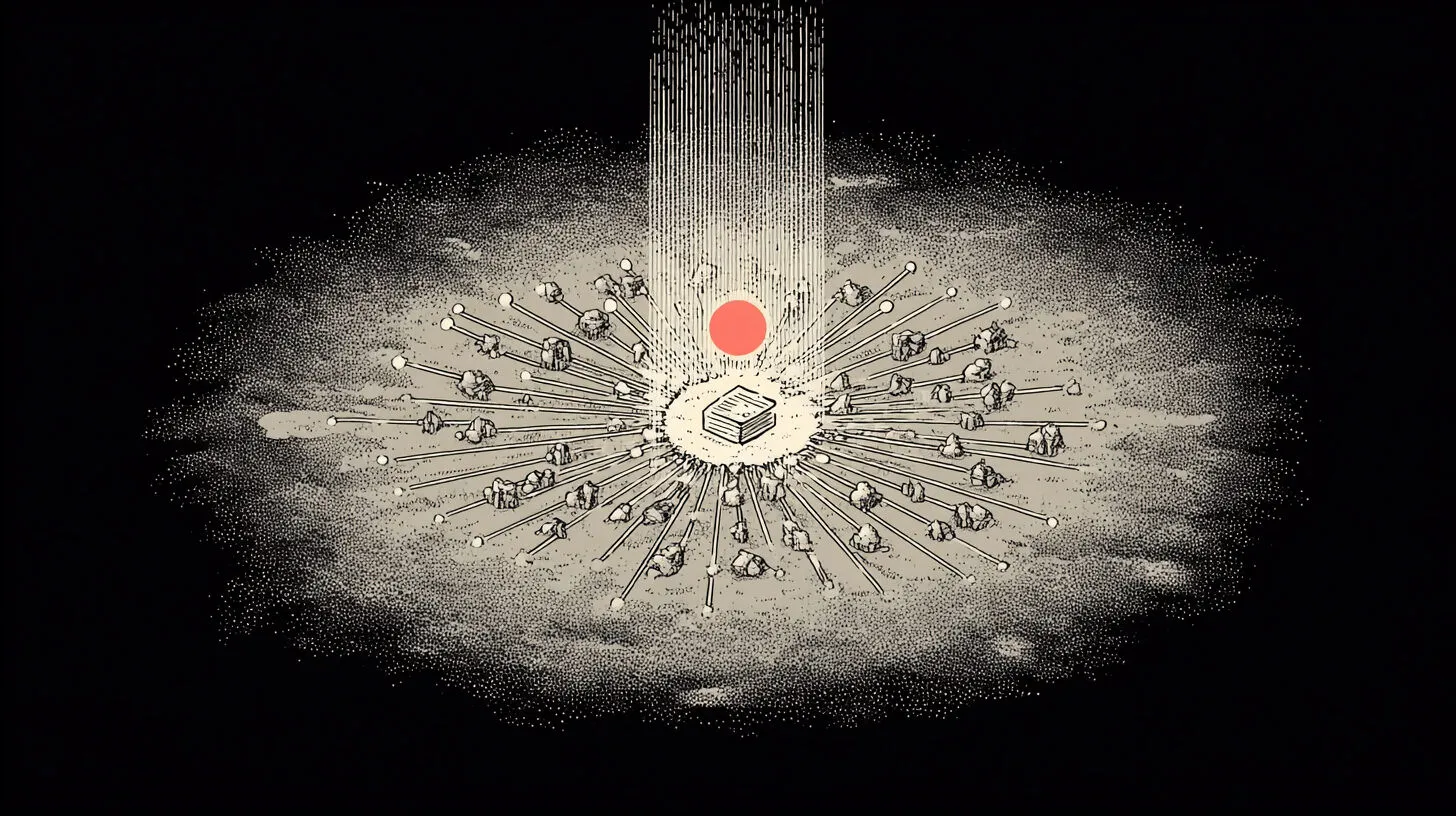
Once you have OpenClaw running, you probably have years of ChatGPT conversations sitting in the cloud that would be useful context for your new AI assistant.
I exported my entire ChatGPT history and fed it into OpenClaw’s memory system. Now my self-hosted assistant knows everything I’ve discussed with ChatGPT - project ideas, coding patterns I prefer, writing style, past decisions.
Why Bother?
Your ChatGPT history is valuable context:
- Project documentation and ideas
- Code patterns and preferences
- Writing style and voice
- Past decisions and reasoning
- Domain knowledge you’ve built up
Instead of starting from scratch with OpenClaw, you can give it years of context immediately.
Step 1: Export Your ChatGPT Data
- Go to ChatGPT Settings
- Click Data Controls
- Click Export Data
- Confirm via email
- Wait for the export (usually 24-48 hours)
- Download the ZIP file
The export includes all your conversations in JSON format.
Step 2: Convert to OpenClaw Format
ChatGPT exports are JSON. OpenClaw reads markdown files in your workspace.
You need to convert the JSON to markdown files that OpenClaw can reference.
Option 1: Manual (for key conversations)
Open the JSON export, find important conversations, and copy them into markdown files in your OpenClaw workspace:
# ChatGPT Export - [Topic Name]

[Date: 2024-03-15]

**Me:** [Your question]

**Assistant:** [ChatGPT's response]

...
Option 2: Automated Script
[TODO: Add conversion script that parses the JSON and creates markdown files]
Step 3: Add to OpenClaw Memory
Put the exported conversations in your workspace memory folder:
~/OpenClaw/memory/chatgpt-history/Structure I use:
memory/
  chatgpt-history/
    2024/
      project-ideas.md
      coding-patterns.md
      writing-style.md
    2025/
      business-strategy.md
      technical-decisions.md
OpenClaw will automatically read these files when they’re relevant to your conversation.
Step 4: Index Important Context
For conversations you reference frequently, add them to your MEMORY.md file with links:
# ChatGPT History Import

Key conversations imported from ChatGPT:
- [Project brainstorming](memory/chatgpt-history/2024/project-ideas.md)
- [Coding preferences](memory/chatgpt-history/2024/coding-patterns.md)
- [Business strategy notes](memory/chatgpt-history/2025/business-strategy.md)
What I Actually Imported
I didn’t import everything. Most ChatGPT conversations are throwaway questions.
I focused on:
- Project planning conversations - Ideas I’m still working on
- Technical architecture discussions - Patterns I use regularly
- Writing samples - Examples of my voice and style
- Strategic decisions - Why I chose X over Y
Selective import > dumping everything.
The Result
My OpenClaw assistant now:
- Knows my coding style from 2+ years of ChatGPT conversations
- References past project discussions when relevant
- Understands my writing voice
- Has context on decisions I’ve made
It’s like hiring someone who’s been reading all your notes for years.
Tips
Don’t import everything blindly
- Your workspace will get cluttered
- The AI will have too much noise
- Focus on conversations that are still relevant
Organize by topic, not chronologically
- Group related conversations together
- Makes it easier for OpenClaw to find relevant context
Update as you go
- If a conversation becomes outdated, delete it
- Keep the memory folder current
Privacy check
- Review what you’re importing
- Don’t include sensitive data or API keys
- Remember this lives in your workspace, not the cloud
Bottom Line
Exporting your ChatGPT history to OpenClaw gives your AI assistant instant context on years of conversations.
It’s optional, but if you’ve been using ChatGPT heavily, it’s worth the hour to migrate the important stuff.

Written by
Cathryn Lavery
Cathryn built and sold BestSelf, bought it back from private equity, and still runs it. She writes Little Might so she doesn't have to keep these lessons in her head.
Related reading
-
Mar 15, 2026
How I built my wife a personal AI assistant on OpenClaw (and what actually took time)
-
Feb 3, 2026
Step-by-Step OpenClaw Setup for People Who Don't Live in the Terminal
-
Mar 9, 2026
Everything You Need Before Your AI Employee Starts
-
Feb 15, 2026
Why Your OpenClaw Agent Doesn't Remember You
-
Apr 2, 2026
The Ops Layer That Keeps Your OpenClaw Agents Alive