Mar 25, 2026
13 min read
Claude Code Tutorial: Hooks, Commands, Plugins, Skills, and MCP Explained
New to Claude Code? This tutorial explains hooks, skills, MCP servers, and CLAUDE.md in plain English — with real examples and zero jargon.
By Cathryn Lavery
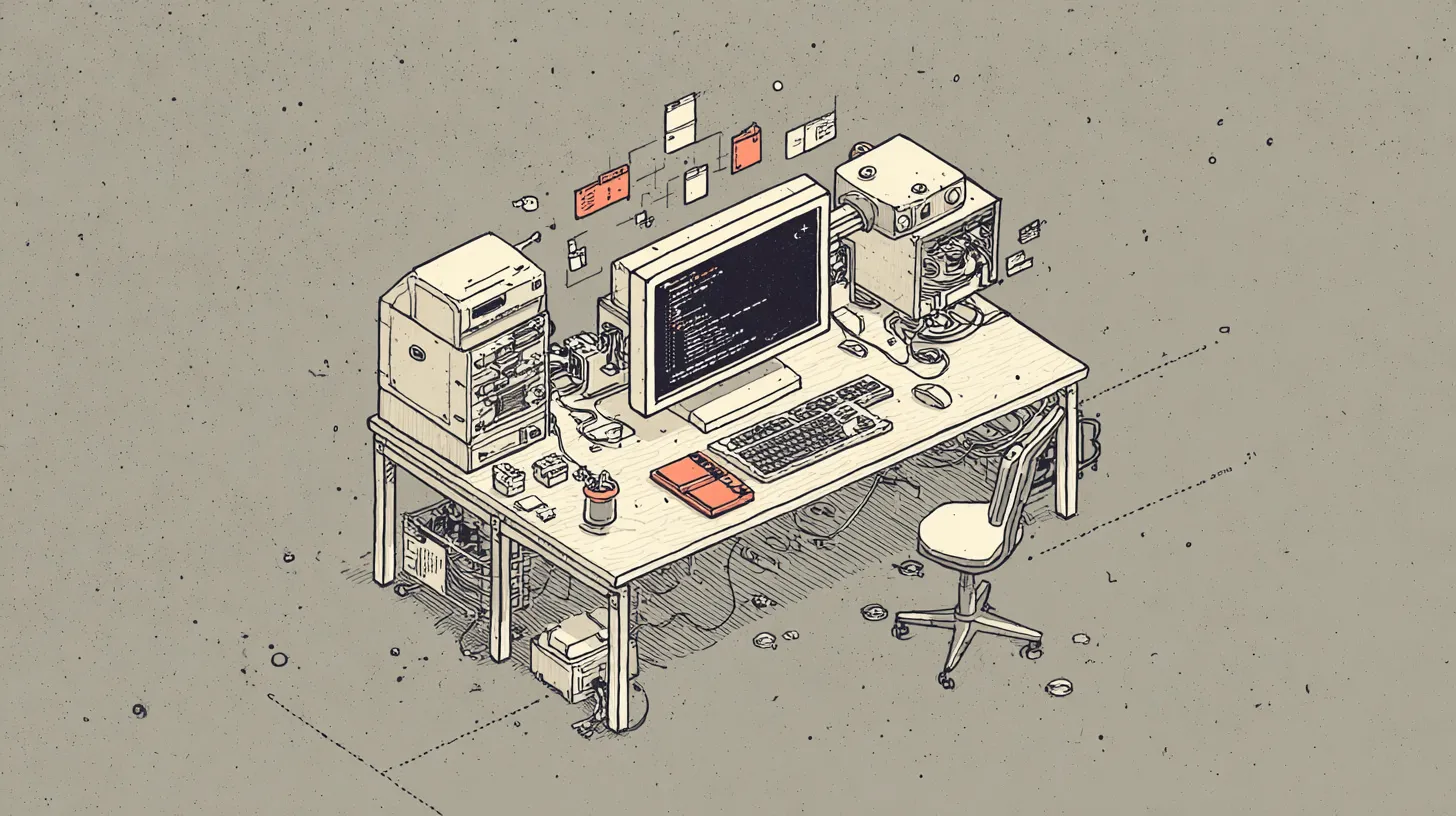
TL;DR: Claude Code is an AI coding assistant that lives in your terminal, but the real power comes from equipping it with context, tools, and reusable workflows. This tutorial breaks down CLAUDE.md, hooks, commands, plugins, skills, and MCP servers in plain English so you can stop treating it like a chatbot and start treating it like a teammate.
If you’re new to Claude Code and people keep throwing around terms like hooks, plugins, skills, and MCP servers — this tutorial breaks it all down in plain English.
Most of the confusion comes from one simple thing: people explain Claude Code like it’s a bag of magical features.
This Claude Code tutorial cuts through that. Here’s the frame that makes everything click:
Claude Code is an AI coding assistant you can equip with context, rules, tools, and reusable workflows — so it does more than answer one-off questions.
That’s the whole game. Once you get that, the jargon collapses into a few simple ideas.
What is Claude Code? (And how it actually works)
Claude Code is a coding assistant that lives in your terminal. Install it with npm install -g @anthropic-ai/claude-code or grab the desktop app from claude.ai/code.
At the simplest level, it works inside your development environment.
You ask it to inspect files, explain code, make edits, run commands, and help you move faster.
On its own, that’s already useful.
But the real jump happens when you stop treating it like a chatbot and start treating it like a teammate with:
- tools
- instructions
- memory or context
- repeatable patterns
That’s where the weird words come in.
Let’s break them down one by one.
The instruction file: CLAUDE.md
Before anything else, the single most useful thing you can do is create a file called CLAUDE.md in the root of your project.
This is a plain text file that Claude reads automatically at the start of every conversation. It’s your project’s instruction manual for the assistant.
You might include things like:
- what the project does
- how to build and run it
- what conventions to follow
- what files matter most
- what not to touch
It sounds simple because it is. But the impact is huge.
Without it, you re-explain the same context every session. With it, the assistant already knows the lay of the land before you ask your first question.
Think of it like onboarding a new teammate. You wouldn’t make them figure out the project from scratch every morning. You’d hand them a doc.
That’s what CLAUDE.md is.
If you only do one thing after reading this article, create that file. Everything else builds on top of it.
Memory: what it remembers between sessions
Claude Code also has memory. When you tell it something important — your role, how you like code structured, a preference it should keep — it can save that and recall it in future conversations.
You don’t have to set this up. It happens naturally. But knowing it exists changes how you work with it.
Instead of repeating yourself, you correct once. “Don’t summarize at the end of every response.” It remembers. Next session, it already knows.
Memory is different from CLAUDE.md. The instruction file is for the project. Memory is for you — your preferences, your role, the way you like to work.
Hooks: automatic actions around the work
A hook is something that runs automatically when a certain event happens.
Think of it like a trigger. You don’t manually remember to do the thing every time. The system does it for you.
In a coding setup, hooks are useful for moments like:
- before a task starts
- after a file changes
- before a final answer is sent
- after a command finishes
A simple example:
You want every code change checked with tests before it’s treated as done.
Instead of relying on memory, you can use a hook that runs your test command after edits.
Another example:
You want the assistant to read a project instruction file before it starts touching code. A hook can enforce that.
Why this matters:
- Hooks reduce sloppiness.
- They turn “I should remember to do this” into “the system does this every time.”
For beginners, that’s one of the biggest unlocks in AI coding. Not just smarter output. More reliable output.
Examples of a few of my favorite hooks:
Auto-format after every edit. Claude changes a file, and Prettier immediately cleans it up. I never think about formatting.
Protect sensitive files. A hook that blocks edits to .env, config secrets, or lock files. Claude literally cannot touch them, even if it tries. Exit code 2 = blocked.
Re-inject context after compaction. When a long conversation gets compressed to save memory, a hook automatically re-reads project instructions so the assistant doesn’t lose the thread.
Desktop notifications. When Claude finishes a long task and needs my input, macOS pops a notification instead of me staring at a terminal.
None of these are fancy. They’re just the kind of thing you’d forget to do manually, turned into something automatic.
Commands: reusable instructions you can run on demand
A command is a saved action or workflow you can call when you need it.
Instead of retyping the same prompt over and over, you package it once.
For example, you might create commands for:
- reviewing a pull request
- writing release notes
- summarizing a codebase area
- generating a bug report from logs
- turning a rough feature idea into an implementation plan
The easiest way to think about commands is this:
A command is a shortcut for a task you repeat.
If you find yourself typing the same long explanation more than twice, that’s probably a command.
Why this matters:
- Commands save time, but more importantly, they keep quality consistent.
- You stop relying on whoever wrote the best prompt that day.
- You get a repeatable playbook.
Plugins: ways to extend what the assistant can do
A plugin gives the assistant access to some extra capability. That might mean access to a system, a service, or a specialized action that isn’t built in by default.
In plain English, a plugin is an extension. It expands the assistant’s reach.
A plugin might let an assistant:
- talk to GitHub
- search documentation
- read from a project tracker
- create tasks in another system
- call some internal company tool
Without plugins, the assistant is limited to the tools already in the box.
With plugins, it can interact with the rest of your stack.
Why this matters:
- This is the difference between “help me think” and “help me actually do the work.”
- If an assistant can only draft text, that’s useful.
- If it can check the issue tracker, inspect docs, and update the right system, now it starts to feel operational.
Examples of a few of my favorite plugins:
-
Compound Engineering — This one changed how I build features. It gives you a full loop: brainstorm → plan → work → review → compound. Every feature you build creates documentation that makes the next feature easier. The planning step alone is worth it. It spins up research agents in parallel to study your codebase and framework docs before you write a single line.
-
Impeccable — Fights “AI slop” in generated frontends. Ships with 20+ slash commands like
/audit,/polish,/distill,/critique,/animate,/bolder,/quieter. Each one targets a specific failure mode in AI-generated UI. -
Frontend Design — Anthropic’s first-party plugin for generating production-grade UI that doesn’t look like every other AI project.
-
PR Review Toolkit — Runs specialized review agents on your pull requests. Catches silent failures, bad error handling, type design issues, and test coverage gaps before your teammates do.
-
Sentry — Connects Claude to your error tracking. It can pull recent errors, read stack traces, and help you fix production bugs without switching to a browser.
-
Feature Dev — Guided feature development that starts with understanding your codebase architecture before writing code.
-
Commit Commands —
/commitcreates clean conventional commits./commit-push-prgoes from working changes to an open PR in one step.
Skills: packaged expertise for repeatable jobs
If commands are what you type, skills are the instructions behind them.
A command calls a skill. The skill tells the assistant how to do the job — what steps to follow, what rules to respect, what good output looks like.
Think of it like giving the assistant a role-specific playbook.
A good skill usually includes:
- when to use it
- how to approach the task
- what steps to follow
- constraints and rules
- what a good output looks like
Examples of skills:
- writing SEO articles
- creating landing page copy
- running a support workflow
- handling project coordination in a control plane
- turning rough notes into documentation
Most people think AI quality is only about the model.
It’s not.
A huge part of output quality comes from the system around the model. Skills are one of the cleanest ways to improve that system.
Instead of hoping the assistant remembers how you like something done, you hand it the actual method.
Why this matters:
- Skills make the assistant more predictable.
- They also make it easier to scale a workflow across projects or teammates because the process is written down.
That’s a big deal. If it isn’t written down, it usually doesn’t survive very long.
Some skills I’ve created:
/issues — I describe a feature or bug in plain English and it turns it into a well-structured GitHub issue with acceptance criteria, labels, and context.
/work — Point it at a GitHub issue and it reads the issue, analyzes the codebase, and starts implementing. It’s like handing a ticket to a junior dev who already knows the repo.
/plan — Takes a feature description and produces a structured implementation plan with dependencies, research, and step-by-step units. I use this before every non-trivial feature.
/brainstorm — For when I’m not sure what I want yet. It asks questions, explores approaches, and helps me think through the “what” before jumping to the “how.”
/review — Runs a multi-layered code review on my changes before I open a PR. Catches things I’d miss: security issues, architectural drift, edge cases, test gaps.
/ship — The full workflow: merge base branch, run tests, review the diff, bump the version, update the changelog, commit, push, create the PR. One command to go from “done coding” to “ready for review.”
These aren’t complicated. They’re just the steps I was already doing, written down so I stop skipping them.
MCP servers: bridges to outside tools and data
MCP stands for Model Context Protocol.
Ignore the fancy name for a second.
The useful way to think about an MCP server is this:
It’s a standard way for an AI assistant to connect to outside tools, data, and systems. If plugins are extensions, MCP is more like a shared language for tool access.
An MCP server can expose things like:
- files
- APIs
- databases
- internal docs
- browser actions
- design systems
- company tools
Without a standard, every tool integration becomes its own custom mess. With a standard, assistants can connect to more systems in a more consistent way.
MCP helps the assistant reach beyond the chat box.
A few I use:
-
Context7 — Pulls up-to-date documentation for any library or framework. Instead of the assistant guessing based on training data, it reads the actual current docs.
-
Sentry — Connects to my error tracking. Claude can pull recent production errors, read the stack traces, and help fix bugs without me opening a browser.
-
iOS Simulator — Lets the assistant interact with a running iOS app. Take screenshots, tap buttons, type text. Useful for testing UI changes without doing it manually.
How these pieces fit together
Here’s the simple mental model:
- Claude Code is the assistant
- CLAUDE.md is the project instruction file
- Memory is what it remembers about you
- Commands are reusable shortcuts
- Hooks are automatic triggers
- Skills are role-specific playbooks
- Plugins and MCP servers connect the assistant to tools and outside systems
If you put that together, you get something way more useful than “AI that writes code.”
You get an assistant that can work inside a defined system.
That system might look like this:
- A developer runs a command called
plan-feature - The assistant uses a skill for technical planning
- A hook forces it to read project instructions first
- A plugin or MCP tool pulls related tickets and docs
- The assistant produces a cleaner plan than a one-off prompt ever would
That’s why people get excited about this stuff.
Not because each piece sounds impressive on its own.
Because together they create leverage.
The mistake beginners make
The most common mistake is trying to learn every term before building anything.
Don’t do that.
You don’t need a PhD in AI tooling to get value from this.
You need one useful workflow.
Start with something boring and repeatable:
- summarize a code area before making changes
- generate a draft implementation plan from a ticket
- run tests automatically after edits
- save a command for code review or debugging
That’s enough to learn the shape of the system.
The second mistake is assuming more complexity means more power.
It usually doesn’t.
A simple setup with one solid command, one helpful skill, and one reliable hook will beat a messy setup full of half-baked integrations.
Where to start if you’re new
If you want the fast path, do this:
1. Create a CLAUDE.md file
Write down what your project does, how to run it, and what matters. This alone changes the quality of every conversation.
2. Learn commands
Commands give you the quickest return because they turn repeated prompts into reusable workflows.
3. Add one or two hooks
Use hooks for quality control. Auto-formatting after edits and protecting sensitive files are both good starting points.
4. Use skills for work you repeat often
If you keep asking for the same kind of output, package the method.
5. Explore plugins or MCP when you need outside access
Don’t start here unless you have a real use case. Tool access is powerful, but it matters more once you already know what job you want the assistant to do.
The bigger point
Claude Code gets interesting when it stops being just a smart text box.
The real shift is moving from:
“Can this AI answer my question?”
to:
“Can this AI operate inside a workflow I trust?”
That trust comes from structure.
Hooks. Commands. Skills. Plugins. MCP.
Different names, same idea.
You’re building a better working environment for the assistant.
That’s what turns casual prompting into something a founder, operator, or developer can actually rely on.
Claude Code tutorial: quick-reference summary
If all of this still feels abstract, remember this:
- CLAUDE.md tells the assistant about the project
- Memory tells it about you
- Hooks decide what happens automatically
- Commands save common tasks
- Skills package expertise
- Plugins add capabilities
- MCP connects the assistant to tools and data
You do not need to master all of it at once.
You just need to build one workflow that saves you real time.
That’s when this stuff stops sounding like jargon and starts feeling useful.

Written by
Cathryn Lavery
Cathryn built and sold BestSelf, bought it back from private equity, and still runs it. She writes Little Might so she doesn't have to keep these lessons in her head.
Related reading
-
Feb 4, 2026
GitHub for Founders: A Beginner's Guide
-
Apr 5, 2026
The Garry Tan Stack: A Definitive Guide to gstack
-
Apr 2, 2026
The Ops Layer That Keeps Your OpenClaw Agents Alive
-
Mar 24, 2026
The Claude Code Cheat Sheet
-
Mar 15, 2026
How I built my wife a personal AI assistant on OpenClaw (and what actually took time)