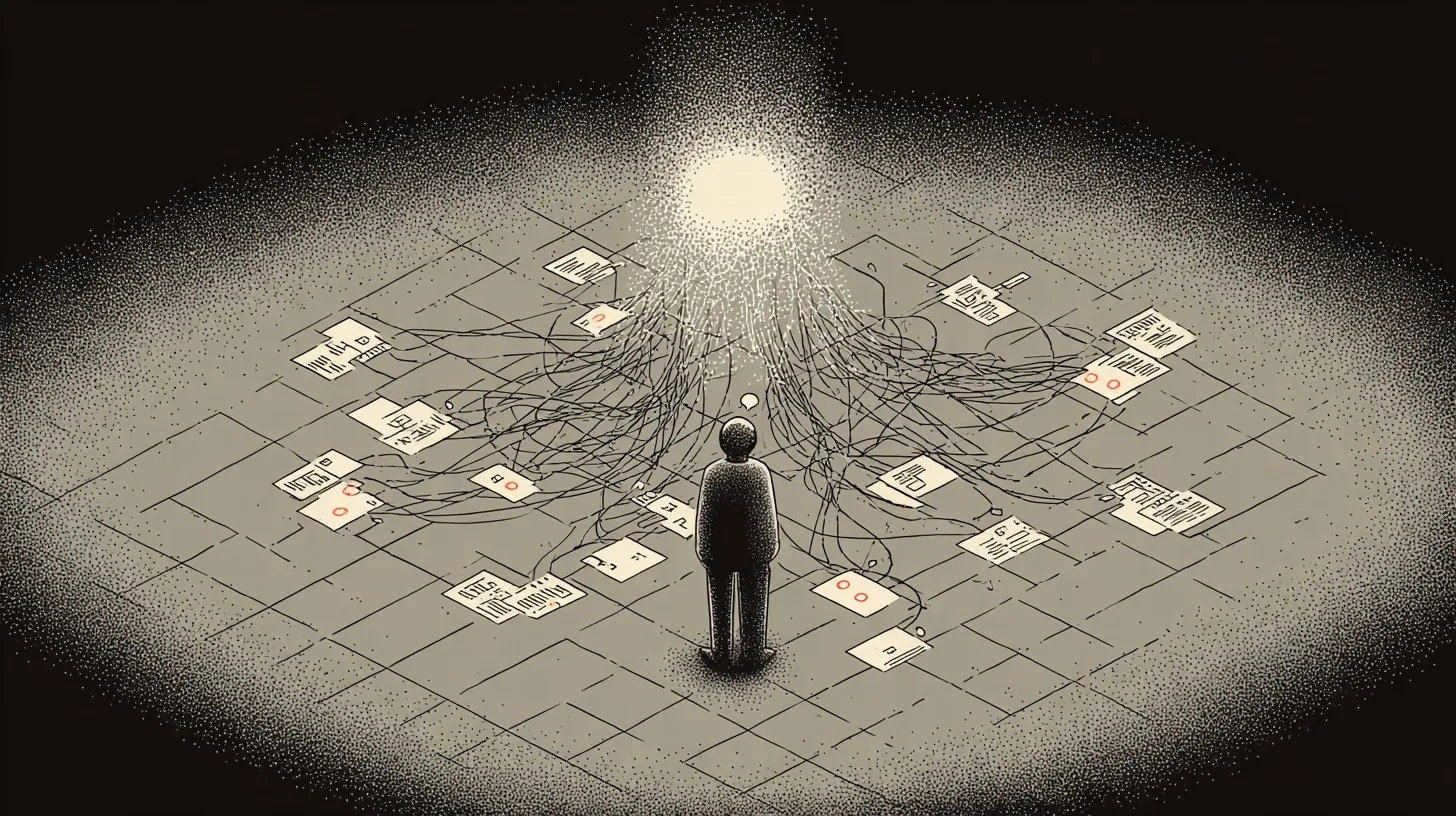
Screenpipe: Your Computer Finally Has a Memory
Screenpipe records your screen and audio continuously, stores everything locally, and makes it all searchable with AI. Two weeks in, I'm not sure how I worked without it.
Apr 15, 2026
12 min read
The first time I asked my computer “what was I looking at yesterday around 3pm?” and got an accurate answer, I realized how much context I’ve been losing every single day.
That’s Screenpipe. It’s an open-source tool that records your screen and audio continuously, stores everything locally, and makes it all searchable with AI. It runs in the background and you forget it’s there. That’s the point.
I’ve been using it for two weeks and it’s quietly become one of the most useful things on my computer. Not because it does anything flashy — because it remembers for me.
What Screenpipe actually does
Think about how many times a day you see something on your screen — a Slack message, a price on a website, a design you liked, a conversation you had — and then you can’t find it later. You know you saw it. You just don’t remember where, or when, or what app it was in.
Screenpipe solves that. It’s a photographic memory for your digital life.
You can ask it things like:
- “What did I see in the last 5 minutes?”
- “Summarize today’s conversations”
- “What was that website I was looking at yesterday around 3pm?”
And it just… tells you. Because it was watching the whole time.
Why local matters
The first thing most people ask is: “Wait, it’s recording my screen? Where does that data go?”
Nowhere. It stays on your machine. All data lives in a local SQLite database on your device. Nothing is sent to external servers.
This is the part that separates Screenpipe from the obvious comparisons. Rewind (and its successor Limitless) require cloud storage to work. Microsoft Recall is Windows-only and tied to Microsoft’s AI ecosystem. Screenpipe is local by default, cross-platform (macOS, Windows, Linux), and open source under the MIT license — you can literally read the code.
Cloud sync between your own devices exists as an optional add-on, and it’s end-to-end encrypted with zero-knowledge encryption. But the default is: your screen, your machine, your data.
Screenpipe stays on your machine. Agents reach the data, the data never reaches them.
How I actually use it
I run three businesses and direct AI agents by voice most of the day. My days are chaotic — I’m jumping between a BestSelf ops meeting, debugging a Shopify conversion issue, building out a content site, and designing a course curriculum, sometimes all in the same hour.
Screenpipe gives me a few things I can’t get anywhere else.
Day reconstruction
At the end of a day (or week), I can pull up everything I said and saw. This is how I generate content — real moments from real work, not stuff I’m making up for social media. Most of the drafts I’m publishing on littlemight.com started as Screenpipe recordings of me talking through problems while working.
Meeting memory
I use Granola for structured meeting notes, but Screenpipe catches everything else — the casual conversations, the voice memos to agents, the moments where I say something useful but don’t write it down. It’s a second brain that never zones out. (I wrote more about building persistent AI memory in the g-brain post.)
Agent context
This is the part most people don’t think about yet. Screenpipe has an API that lets AI agents query your screen history. Instead of explaining to an agent what you’ve been working on, it can just… look.
You can connect it to Claude via MCP (Model Context Protocol) with one command:
claude mcp add screenpipe -- npx -y screenpipe-mcpYour AI assistant then has access to what you’ve been doing. No more copy-pasting context into every chat.
Chief of staff check-ins
OpenClaw is my AI chief of staff — an agent that manages my schedule, priorities, and context across everything I’m building. The problem with any AI chief of staff is visibility: it can only help if it knows what you’ve actually been doing, not what you remember to tell it.
I wanted that context without giving OpenClaw direct access to my laptop. So I keep Screenpipe’s database local and mirror a read-only copy to a Dropbox folder it can see.
The mechanism: a scheduled script runs a SQLite backup on the Screenpipe database every few minutes and writes it to the shared folder. SQLite’s backup command handles hot copies safely even while Screenpipe is actively writing, so there’s no risk of a corrupted snapshot. OpenClaw picks up the latest copy on each check-in.
A few reasons this is better than wiring an agent to your live local API:
- It’s reading a snapshot, not querying your live system
- You control how fresh it is (mine syncs every 5 minutes)
- If the agent is ever compromised, it can’t write to your data
- You can revoke access by deleting the folder — no API keys to rotate
That turns Screenpipe from a passive archive into something my AI chief of staff can actually use. OpenClaw reads the mirror, sees what I’ve been doing, and checks in with useful context: what I actually worked on today, whether I’ve been context-switching too much, whether the last two hours were real focus or just meetings. It can protect a flow state instead of interrupting it.
The full setup — the sync script, the scheduled task, and how to wire it into your agent’s context — I’ll cover as a companion post.
Automations (Screenpipe calls them “pipes”)
This is where Screenpipe stops looking like a search tool and starts looking like infrastructure.
The app uses the word “pipe” — which sounds more technical than it is. Think of it as an automation: a small file that watches your work and does something on a schedule. You write a pipe.md with a prompt and a cron schedule, drop it in ~/.screenpipe/pipes/, and Screenpipe runs an AI agent against your screen history on that schedule. The agent can query your data, call APIs, write files, and take action.
Built-in automations include:
- Obsidian sync — automatically logs your screen activity to an Obsidian vault as daily notes
- Reminders — scans your activity for todos and creates Apple Reminders on macOS
- Idea tracker — surfaces startup ideas from what you’re browsing, cross-referenced with market trends
And it ships with 40+ built-in connectors — Gmail, Slack, Notion, Linear, GitHub, Jira, Salesforce, Discord, and more — so automations can read from and write to the tools you already use without custom code.
The shift here is subtle but big: instead of prompting AI to do something, you’re writing small files that watch your work and act on it. Less “chatbot you go to,” more “coworker who already knows what happened today.”
Each automation also has YAML permissions — which apps it can see, which windows to ignore, which hours it runs, what endpoints it can call. So if you don’t want one seeing your 1Password window or your therapy notes app, you write one line.
The thing most people miss: this isn’t a search tool with automation bolted on. The automation is the point. You write a small file, and your work starts generating output while you sleep.
Here’s what three of mine actually look like. Each is a single pipe.md dropped in ~/.screenpipe/pipes/{name}/.
Dashboard rollup → Slack. Every weekday at 7am, this scans yesterday’s screen captures from my analytics, logistics, and ad dashboards and posts a one-paragraph brief to Slack. Instead of opening four tabs to piece together the picture, I get one message before my first call.
---
schedule: "0 7 * * 1-5"
enabled: true
connections: [slack]
permissions:
  allow:
    - App(Arc)
    - Content(ocr)
---
Search yesterday's screen captures from my analytics dashboard, logistics
portal, ad platform, and marketplace seller center. Extract metrics, status
updates, and any notable changes. Format as a single brief paragraph.
Post to Slack.
Call debrief. Run manually right after any meeting. Finds the most recent multi-speaker audio session, checks my calendar for the meeting name, and pulls out decisions, action items, and open questions. Takes about 20 seconds.
---
schedule: manual
enabled: true
connections: [apple-calendar, slack]
permissions:
  allow:
    - Content(audio, ocr)
---
Find the most recent multi-speaker audio session from the last 4 hours.
Check Apple Calendar for the meeting name. Extract: decisions made, action
items with owners, open questions. Post to Slack if connected.
Coding session log → GitHub. Every weekday at 6pm, scans the day’s terminal activity and creates a GitHub issue: what was built, what commands ran, and exactly where to pick up next session. I used to lose the thread between sessions constantly. This fixed it.
---
schedule: "0 18 * * 1-5"
enabled: true
connections: [github]
permissions:
  allow:
    - App(Ghostty)
    - Content(ocr)
---
Scan today's terminal activity. Identify the repo from visible file paths
and commit messages. List what was built, key commands run, current status,
and what to start with next session. Create a GitHub issue titled
"Session Log [date]".
The pattern is always the same: a schedule, a data source, a delivery target. The prompt is the logic. That’s the whole system.
The practical stuff
CPU usage typically sits around 5–10%, though a recent update meaningfully reduced spikes — particularly for terminal-heavy workflows, where captures were previously running full Vision processing on every typing pause. RAM is 0.5–3GB depending on what you’re doing. Storage runs about 20GB per month of recording, which sounds like a lot — but you don’t have to keep it all. You can set up an automation that runs nightly, pulls out anything worth keeping (decisions, links, useful moments), and deletes the raw recordings. What you end up with is a distilled log of your work instead of a growing pile of footage you’ll never rewatch.
The CLI is free and open source under MIT. You can run it with:
npx screenpipe@latest recordThe packaged desktop app is $400 lifetime if you’d rather not build from source, and there’s a $39/mo Pro tier that adds encrypted cloud sync between your devices. You don’t need either to use Screenpipe — the core is free and works completely offline.
How to set it up
The CLI is the right place to start:
npx screenpipe@latest recordRun that, let it go for a full day, and look at what it captured. If it captures what you’d want, you’re already getting value. Most people get the desktop app at that point — the CLI works, but the app gives you a search interface that’s worth having.
The Screen Recording permission trap
The first real gotcha on macOS: Screenpipe can’t actually capture anything unless you grant Screen Recording permission to the screenpipe binary itself, not the terminal you launched it from. Grant it to Terminal or Ghostty and you’ll silently capture nothing the moment you run it headless in the background.
Install Screenpipe globally first so you have a stable path to point macOS at:
npm install -g screenpipeThen open System Settings → Privacy & Security → Screen Recording, click +, hit Cmd+Shift+G in the file picker, and paste:
~/.npm-global/lib/node_modules/screenpipe/node_modules/@screenpipe/cli-darwin-arm64/bin/screenpipeToggle the new entry on. Same drill under Accessibility if you want keystroke capture too (optional — mic and vision work without it).
Once you’re relying on Screenpipe, you want it running all the time — at login, after a reboot, and after any unexpected crash. On macOS that’s a LaunchAgent.
I had Screenpipe stop recording for two days after a permissions blip before I set this up properly. Don’t wait until you notice it’s gone.
Create a small wrapper script at ~/.screenpipe/bin/run-recorder.sh:
#!/bin/bash
set -euo pipefail
export PATH="/opt/homebrew/bin:$HOME/.npm-global/bin:/usr/bin:/bin"

exec "$HOME/.npm-global/bin/screenpipe" record \
  --filter-music \
  --ignored-windows Spotify \
  --use-all-monitors \
  --video-quality balanced \
  --transcription-mode batch \
  --data-dir "$HOME/.screenpipe"
Make it executable:
chmod +x ~/.screenpipe/bin/run-recorder.shThen drop this LaunchAgent at ~/Library/LaunchAgents/com.screenpipe.recorder.plist (replace YOURNAME with your macOS username — plists don’t expand $HOME):
<?xml version="1.0" encoding="UTF-8"?>
<!DOCTYPE plist PUBLIC "-//Apple//DTD PLIST 1.0//EN" "http://www.apple.com/DTDs/PropertyList-1.0.dtd">
<plist version="1.0">
<dict>
    <key>Label</key>
    <string>com.screenpipe.recorder</string>
    <key>ProgramArguments</key>
    <array>
        <string>/Users/YOURNAME/.screenpipe/bin/run-recorder.sh</string>
    </array>
    <key>RunAtLoad</key>
    <true/>
    <key>KeepAlive</key>
    <true/>
    <key>ThrottleInterval</key>
    <integer>60</integer>
    <key>ProcessType</key>
    <string>Background</string>
    <key>StandardOutPath</key>
    <string>/Users/YOURNAME/.screenpipe/screenpipe.out</string>
    <key>StandardErrorPath</key>
    <string>/Users/YOURNAME/.screenpipe/screenpipe.err</string>
</dict>
</plist>
Load it:
launchctl load -w ~/Library/LaunchAgents/com.screenpipe.recorder.plistThat’s the whole trick. Three keys do the work:
RunAtLoad— starts Screenpipe whenever you log in, including after a reboot.KeepAlive— if Screenpipe ever crashes or exits, launchd brings it back.ThrottleInterval 60— waits at least 60 seconds between restarts so a broken config can’t thrash your machine.
To confirm it’s alive and catch issues:
launchctl list | grep screenpipe
tail -f ~/.screenpipe/screenpipe.err
If you ever see screen recording: missing in that error log on a loop, macOS hasn’t associated your permission grant with the binary path the LaunchAgent is using. Re-add the binary to Screen Recording (same path as above), then kickstart the agent:
launchctl kickstart -k "gui/$(id -u)/com.screenpipe.recorder"One anti-pattern I burned a day on: don’t wrap the recorder in a visible terminal app (Ghostty, iTerm, Terminal.app) inside the LaunchAgent. It works until a permission blip makes Screenpipe exit immediately — then every 5 minutes launchd fires a new terminal window that never closes, and by lunchtime you’ve got 30 ghost windows stacked on your desktop. Run the binary directly.
Claude integration
For Claude integration, one command connects your screen history:
claude mcp add screenpipe -- npx -y screenpipe-mcpAfter that you can ask Claude questions about what you’ve been working on without explaining any context.
Running the built-in prompts manually
The automation version runs these on a schedule. The manual version is you opening Claude Code and pasting one in. Both work — the schedule is better for habits you want to build consistently, the paste is better for right now.
Day Recap — what you actually accomplished today
Analyze my screen and audio recordings from the last 16 hours.

## Summary
One sentence: what I mainly did today.

## Accomplishments
- Top 3 things I finished, with timestamps
- Name specific apps, files, or projects

## Key Moments
- Important things I saw, said, or heard — with timestamps

## Unfinished Work
- What I should continue tomorrow — name the app, file, or task

## Patterns
- Apps I used most, topics that came up repeatedly

Only report what you can verify from the recordings. End with: "Next step: [most important thing to continue]"
Standup Update — copy-paste ready for your team
Based on my screen and audio recordings from the last 24 hours, write a standup update.

## Yesterday
- What I worked on (name specific projects, files, tools, PRs)

## Today
- What I'll work on next, based on unfinished tasks and recent activity

## Blockers
- Errors, slow builds, things I'm waiting on. If none, write "None."

Keep it under 150 words. Copy-paste ready.
What’s Top of Mind — recurring themes from the last 8 hours
Search my screen and audio recordings from the last 8 hours.

## Recurring Topics
- Subjects, projects, or people that appeared 3+ times — rank by frequency

## Focus Areas
- What I spent the most time on, with approximate duration and app name

## Unresolved Questions
- Things I searched for or discussed without finding an answer

## Emerging Patterns
- New topics, tools, or workflows appearing compared to my usual routine

End with: "Next step: [most important thing to follow up on]"
Morning Brief — pick up where you left off
Look at my screen and audio recordings from the last 12–18 hours.

## Where I Left Off
- What was I working on when I stopped? Name the app, file, and task.

## Unfinished Tasks
- Anything started but not completed

## Important Messages
- Key conversations or notifications I should follow up on

## Today's Context
- Meetings, deadlines, or events mentioned yesterday

Be specific with app names and window titles. End with: "Start with: [first thing to do this morning]"
Who I Talked To — people and conversations from today
Search my screen and audio recordings from the last 24 hours for mentions of people — names, voices, messages, video calls, Slack threads, emails visible on screen.

## People I Interacted With
- Name, context (call / Slack / email / in person), and what we discussed

## Key Asks and Commitments
- Anything someone asked me to do, or I said I'd do

## Follow-ups Needed
- Conversations that ended without resolution or a next step

If a name appears without context, note the app it appeared in.
Decisions I Made — a log of choices and reasoning
Search my screen and audio recordings from the last 24 hours for decisions — things I said yes or no to, choices between options, directions I picked, things I approved or rejected.

## Decisions Made
- What was decided, when (approximate time), and in what context

## Reasoning Visible
- Any rationale I stated out loud or typed — what drove the choice

## Decisions Still Open
- Choices I was weighing but didn't resolve

This is a decision log, not a summary. Be specific.
AI Habits — how you’re actually using AI tools
Search my recordings from the last 24 hours for AI tool usage. Check each separately: Claude, ChatGPT, Cursor, Gemini, Perplexity, Copilot.

## AI Tools Used
- Each tool with approximate time spent

## What I Used Them For
- Coding, writing, research, or brainstorming — per tool

## Effectiveness
- Which tool appeared alongside completed work vs. abandoned attempts

End with: "Tip: [one suggestion to use AI tools more effectively today]"
The prompts do the same thing as the automations — the only difference is who decides when to run them.
Who this is for
If you’ve ever had the experience of knowing you had an important thought, a useful link, a decision you made out loud — and then not being able to find it — that’s the gap Screenpipe fills. Not because you’re disorganized. Because nothing was capturing it.
If you’re building with AI agents and you’re tired of re-explaining your context every time you open a new session, the MCP integration alone is worth it.
And if you care about your data staying on your machine, you’re not giving anything up here. That’s the default, not an upgrade.
Start with the CLI. Run it for a week. If you find yourself using the search even once a day, you’ll know the desktop app is worth it.
Two weeks in, I’m genuinely not sure how I worked without it.
Download Screenpipe →This article is part of the littlemight.com tool stack series — real tools I actually use. If you buy through my Screenpipe link, I may earn a commission.

Written by
Cathryn Lavery
Cathryn went from designing buildings to architecting products. She founded BestSelf, bought it back from private equity in 2024, and rebuilt it AI-native. She's currently building something new in AI. Little Might is where she doesn't have to keep it all in her head.
Related reading
-
Aug 16, 2026
The Apps Behind My AI Workflow
-
Apr 13, 2026
What Is g-brain? Garry Tan's gbrain, Explained
-
Sep 9, 2026
YC Summer 2026: the full batch, plus 7 of my favorites
-
Jul 6, 2026
10 prompts that make Fable act like an owner, not an assistant
-
Jul 6, 2026
15 Fable prompts for people who don't code